How to Secure Your Home Router in 20 Minutes
Your router's default admin password is public knowledge. Change it, update the firmware, use WPA3 or WPA2, and turn off remote management — four steps, one sitting.
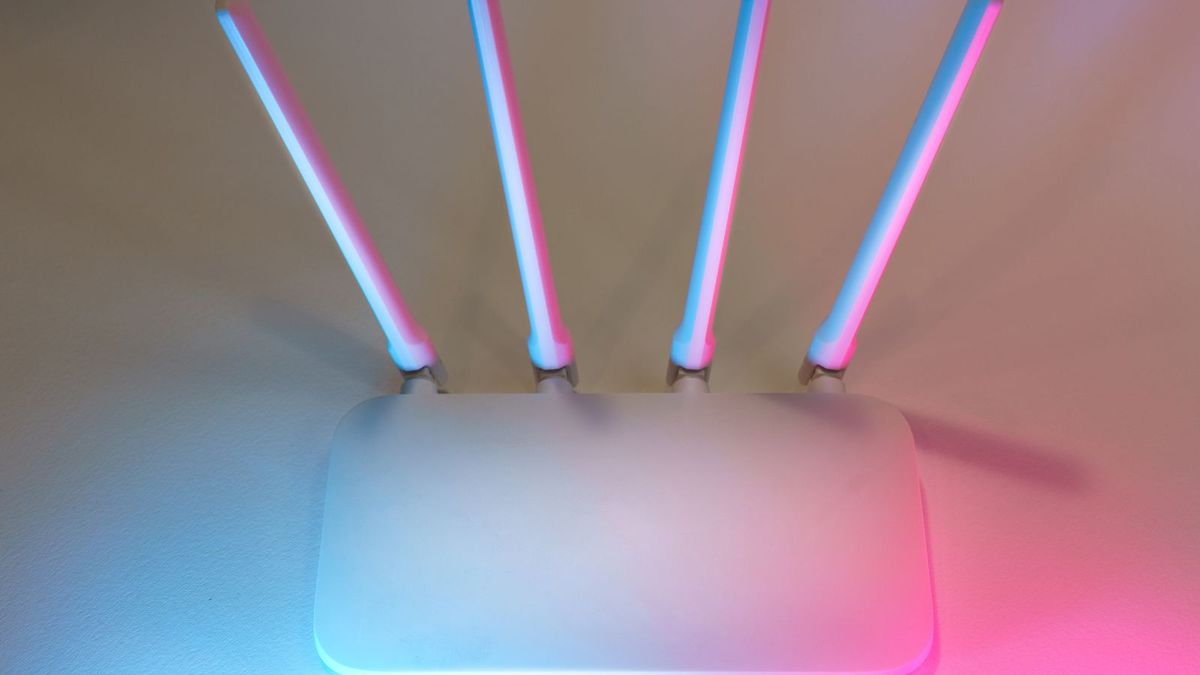
Your router is the front door of your home network. Every phone, laptop, television, and smart speaker in the house connects through it — and most people have never changed a single factory setting on theirs. According to Broadband Genie's 2024 Router Security Survey of more than 3,000 home Wi-Fi users, 52 percent had never adjusted any factory setting, 86 percent had never changed the router's administrator password, and 89 percent had never updated the firmware. The good news is that the fixes are small, and most of them take less than twenty minutes from any web browser.
Step 1: Change the admin password
When your router ships from the factory, it comes with default credentials — often "admin" and "admin," or "admin" and "password." Those defaults are publicly documented, posted online, and searchable for every brand. Anyone who reaches the admin page and signs in can change your router's settings, redirect your traffic, or lock you out.
To reach the settings, type the router's IP address into a browser — usually 192.168.1.1 or 192.168.0.1 — and log in with the credentials printed on the router's label. Then immediately change them. Set a new admin password that is at least 16 characters, ideally a random mix of letters, numbers, and symbols, and store it in a password manager. If you can change the admin username too, do that as well. Note that the admin password is a separate login from your Wi-Fi password, and both need to be strong.
Step 2: Update the firmware, and replace a router that no longer gets updates
Firmware is the software the router itself runs. Manufacturers release updates that patch known vulnerabilities, but those patches only help if they are installed. Look for a firmware or software update option in the admin panel, usually under Advanced or Administration, and enable automatic updates if the router offers them. For routers without automatic updates, set a reminder to check every three to six months.
If your router is more than five to seven years old and the manufacturer no longer releases firmware for your model, that is a genuine reason to replace it. An unsupported router does not get security patches, and the vulnerabilities in it are publicly known. A new router is also likely to support WPA3 and automatic updates, which makes the rest of this list easier.
Step 3: Use WPA3, or WPA2, with its own Wi-Fi password
In the wireless settings, set the encryption to WPA3 if your router offers it, or WPA2-AES at minimum. Avoid WEP and the original WPA — both are outdated and easily cracked. Then set a Wi-Fi password that is long and unique: 12 or more characters at the absolute minimum, longer if you can manage it, and used nowhere else. Change it from the default printed on the router's label, which is visible to anyone who can physically see the router. A random passphrase of several unrelated words is both strong and easy to remember.
Step 4: Turn off remote management, and use the guest network
Remote management lets someone administer the router from outside your home network. Unless you have a specific reason to need it, turn it off, so changes can only be made from inside your network. While you are in the settings, turn off WPS (Wi-Fi Protected Setup) if your router has the option — its PIN-based shortcut has known weaknesses. Also enable the router's built-in firewall if it is not already on.
If your router offers a guest network, use it for visitors and for smart-home devices. A guest network isolates those devices from your main network, so a compromised smart bulb or a visitor's infected laptop cannot easily reach your computers or file shares. Give the guest network its own password, different from your main Wi-Fi password.
If you forget the new admin password
There is no recovery email for a router. If you change the admin password and forget it, the only option is a factory reset: press and hold the reset button on the router for 10 to 15 seconds, which restores the factory defaults — including the default password. That is another reason to store the new password in a password manager the moment you set it. Write down nothing on a sticky note attached to the router itself.
The whole list, in order
Change the admin password to something long, random, and unique. Update the firmware and turn on automatic updates, replacing the router if it no longer receives them. Use WPA3 or WPA2-AES with a long, unique Wi-Fi password. Turn off remote management and WPS, enable the firewall, and put guests and smart-home devices on the guest network. Run the four steps as a set, in one sitting, and your home network goes from factory-default to genuinely defended.