Two-Factor Authentication: Set It Up Once, Block Most Account Takeovers
Start with your email, use an authenticator app instead of text messages where you can, and store backup codes offline. The whole job takes about half an hour.
Two-factor authentication, or 2FA, asks for a second proof of identity beyond your password — usually a code from an app, a hardware key, or a text message. It is the single most effective defense ordinary people have against account takeover. Microsoft has reported that multi-factor authentication blocks over 99.9 percent of account compromise attacks, and the Cybersecurity and Infrastructure Security Agency, CISA, calls it one of the most effective controls against account compromise. The reason is simple: a stolen password alone is no longer enough.
Secure your email first
Start with your primary email account, because it resets everything else. An attacker who controls your inbox can request password-reset links for your bank, your shopping accounts, and your social media, collect them from your inbox, and lock you out. For Gmail, open your Google Account, go to Security, then 2-Step Verification. For Outlook, go to your Microsoft Account, then Security, then Advanced security options. For Apple ID, go to Settings, tap your name, then Sign-In & Security, then Two-Factor Authentication.
After email, work outward in order of damage: banking and financial accounts, your Apple or Google account, cloud storage, then social media. You do not have to do every account in one sitting. The email account plus your bank covers the worst outcomes; the rest can follow over a week.
Pick the strongest method each account offers
Not all second factors are equal. From strongest to weakest:
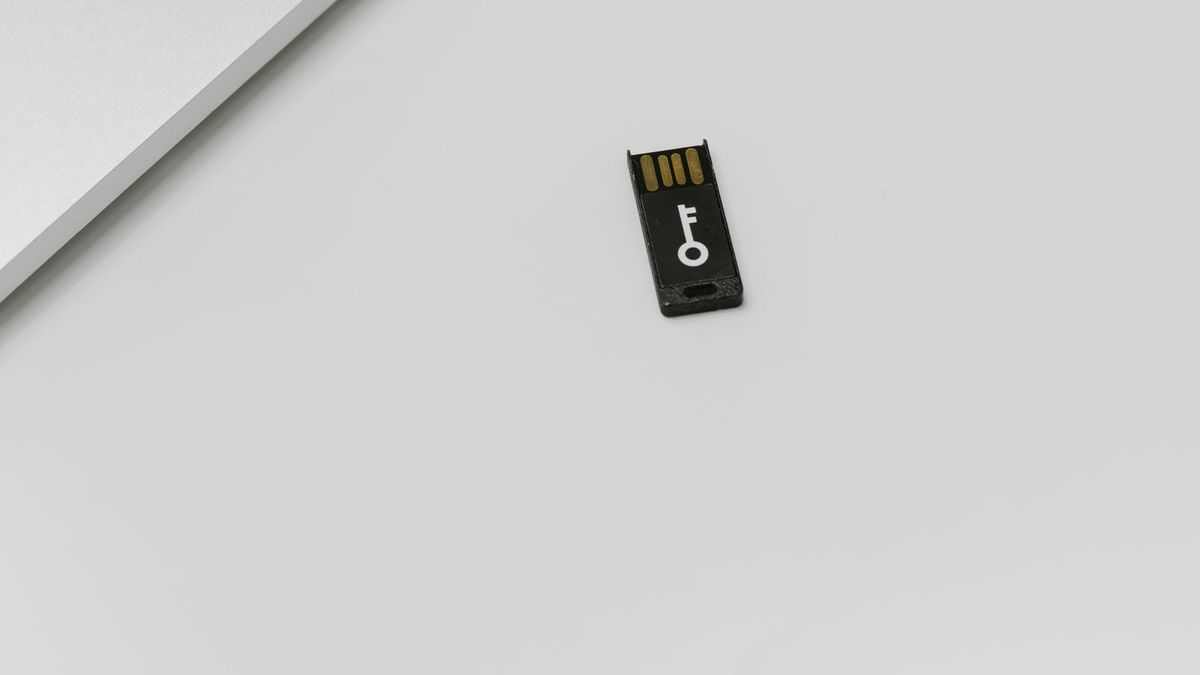
Hardware security keys — small USB or NFC devices, such as a YubiKey, that you tap to sign in. They are phishing-resistant: the key only works with the real site, so a fake login page cannot trick it. They are the best choice for your most valuable accounts.
Authenticator apps — free apps such as Google Authenticator, Microsoft Authenticator, or Authy that generate a six-digit code changing every 30 seconds. The code is generated on your device and never travels over a phone network, so it cannot be intercepted the way a text message can. This is the right default for most people and most accounts.
Text messages (SMS) — better than no second factor at all, but the weakest option. CISA warns that SMS-based authentication is vulnerable to phone-number porting attacks, where a scammer convinces your carrier to move your number to their device. If SMS is the only option an account offers, enable it now and switch to an app or key later if the account adds support.
Setting up an authenticator app
1. Install the app. Download Google Authenticator, Microsoft Authenticator, or Authy from your phone's app store. All three are free.
2. Open the account's security settings. Find the two-factor or two-step verification option and choose "authenticator app" or "TOTP."
3. Scan the QR code. The site shows a QR code; scan it with the app. If you cannot scan, type in the setup key shown beside it.
4. Enter the code the app shows. This confirms the setup worked. The code changes every 30 seconds, so if one expires, wait for the next.
5. Save the backup codes. Most services give you a set of one-time backup codes during setup. Save them somewhere safe — printed and stored at home, or in your password manager — and not inside the same email account they protect. They are your way back in if you lose your phone.
What to do when you get a new phone
This is where people get locked out. Before you wipe or trade in an old phone, move your authenticator accounts to the new one. Some apps offer encrypted cloud backup or a transfer feature; others store codes only on the device, which means a lost phone can lock you out of every account connected to it. If you use an app without backup, keep those printed backup codes current, and set up the new phone while the old one still works. After the move, sign in to one account with the new phone to confirm the codes work, then wipe the old device.
One warning worth remembering
Never approve a sign-in prompt you did not initiate. Attackers have learned to trigger a flood of approval requests, hoping the victim taps "approve" just to make the notifications stop. If you get a code or a prompt you did not request, someone may already have your password: decline it, change the password from a device you trust, and check the account's recent activity. The second factor did its job — it stopped them. Do not hand them the win by approving.